
Creating Users
Creating and Managing Users
Most users are provisioned automatically through SSO or integrations. However, you can manually create users, ideal for platform admins, testers, or small-scale deployments. You can also edit and manage user records as needed directly from the Console.
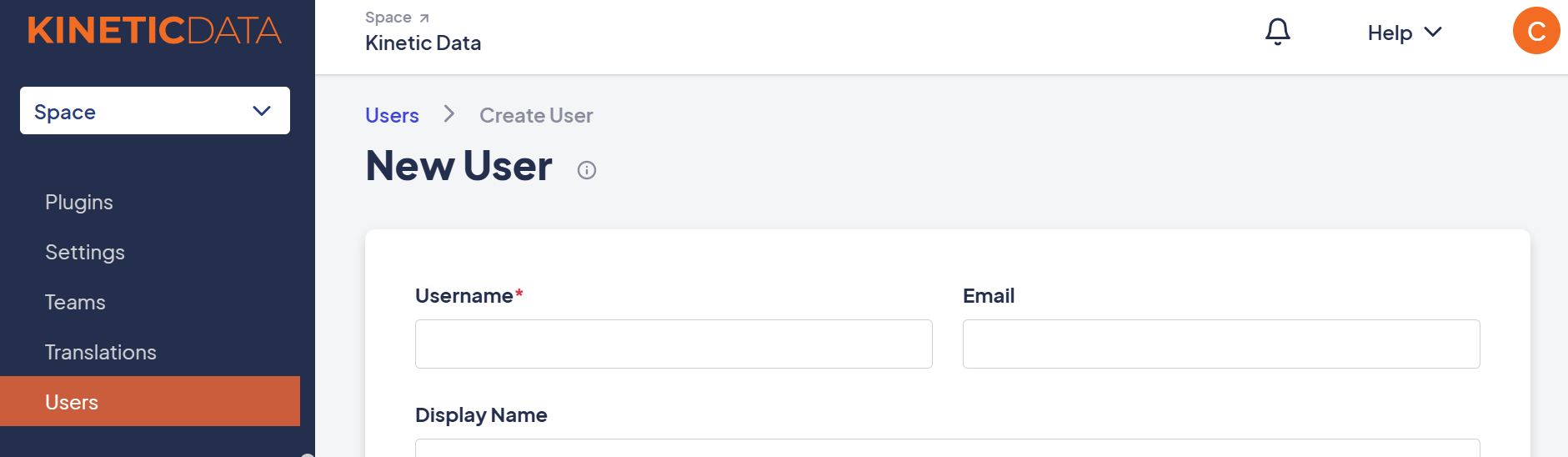
Creating a User Manually
- Navigate to Configuration > Users
- Click + New User
- Fill out the required fields (see below)
- (Optional) Assign teams and attributes
- Click Create User
User Properties
Each user record contains the following properties:
-
Username:
A unique identifier for the user. Often matches the login or SSO ID. Required. -
Email Address:
Used for platform notifications like password resets and workflow alerts. -
Display Name:
A human-readable name shown throughout the UI—for example, in approval assignments or submission logs. -
Enabled:
Controls whether the user can authenticate and access the platform. -
Space Admin:
Grants full administrative access across the Space. Space Admins bypass security definitions and gain access to all forms, submissions, and configuration tools. -
Allowed IP Addresses:
Optional security restriction. Enter a comma-separated list of IPs the user is allowed to log in from.
→ Use*to allow access from any IP address (default). -
Preferred Locale:
Sets the user’s language and regional format. If not specified, the user inherits the Space’s default locale.
Editing Users
To update a user:
- Navigate to Configuration > Users. Select a user from the list
- Edit their name, email, team membership, or attributes
- Click Update User
In SSO-enabled environments, profile details may be overwritten on next login unless explicitly mapped or excluded from sync.
Deleting Users
You can delete users, but be cautious:
- Make sure the user is not actively assigned in workflows
- Deletion is permanent and should be avoided for audit-critical users
Best practice: Disable the user instead of deleting if you're unsure of downstream impact.
Next Step
Now that you’ve created your users, learn how to enhance their profiles using User Attributes.
Updated 12 months ago